Pins, Idea Pin Covers & Traffic Graphics
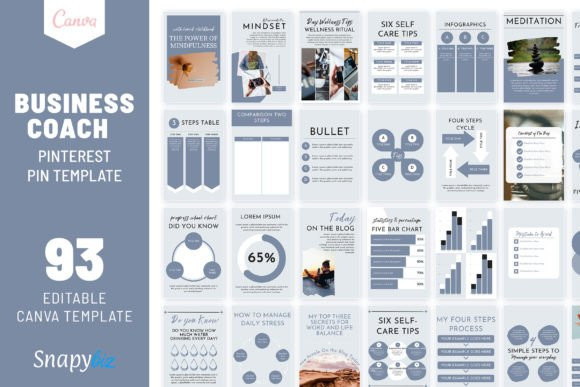
Pinterest templates help you create click-friendly pins faster and keep your branding consistent. Use this page to pick a pin format, follow proven layout rules (title-first + strong contrast), and customize quickly – fonts, colors, spacing, and CTAs – without designing from scratch.
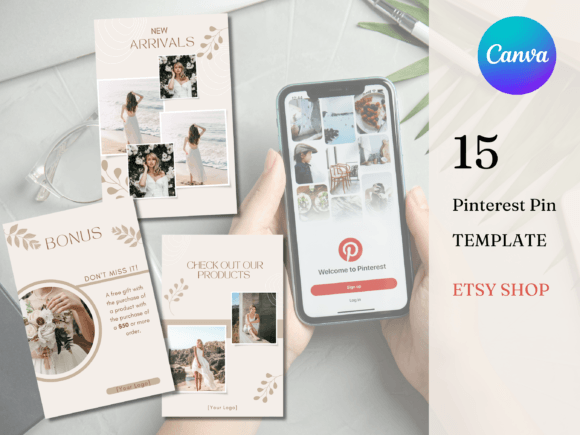
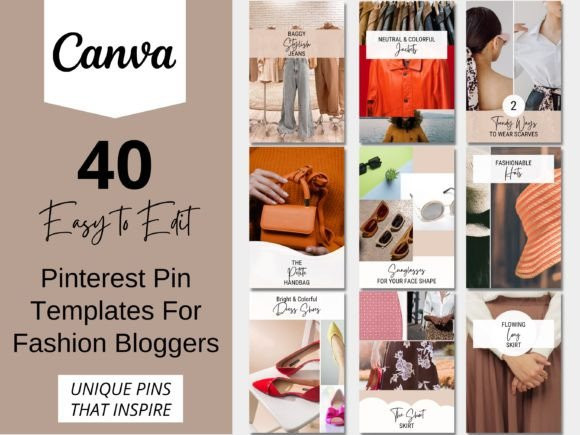
Why Pinterest templates work
Pinterest is a search engine. People click pins that are instantly clear: a strong title, a visible benefit, and a clean layout. Templates give you a repeatable system so you can publish more often without sacrificing quality.
- Faster production: use pre-built zones (title, image, badge, CTA).
- Higher clarity: title-first structure works on mobile.
- Consistent branding: your pins become recognizable.
- Easy testing: create 3–5 variants per URL and compare results.
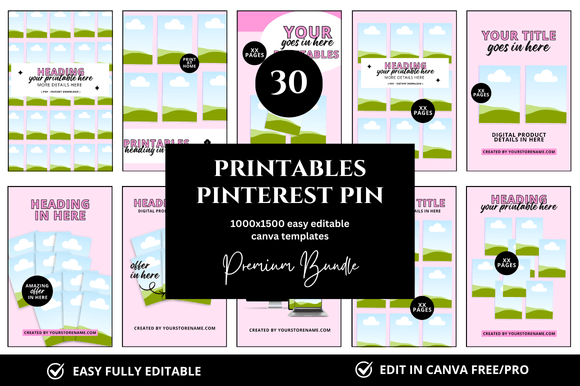
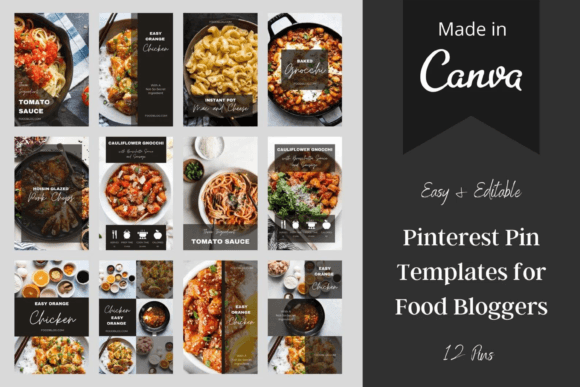
Pin rules that drive clicks
Before changing colors or adding decorations, follow these fundamentals:
- Title first: make the headline the main hero of the design.
- One promise: one topic + one benefit (no mixed messages).
- Strong contrast: text must be readable on small screens.
- Simple hierarchy: Title → subline → small CTA (“Read”, “Download”, “See tips”).
- Whitespace wins: avoid busy collages; keep it scannable.
- Brand kit: 2 fonts + 3–5 colors + one badge style.
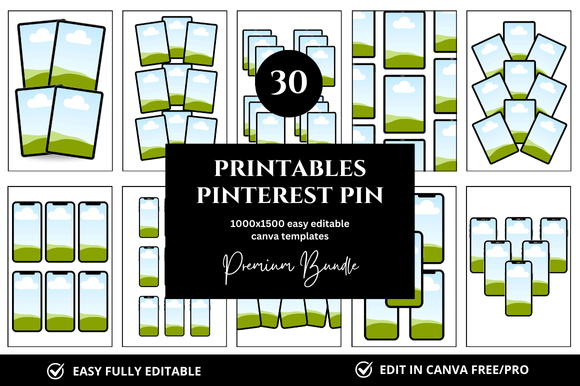
Template types
Pick one core type first, build consistency, then expand.
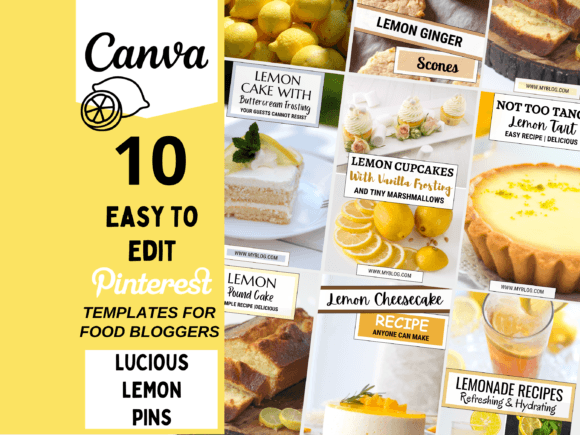
Standard Pin Templates
- Best for: blog posts, affiliate roundups, tutorials, list posts.
- Use when: you need a clean title + image + CTA structure.
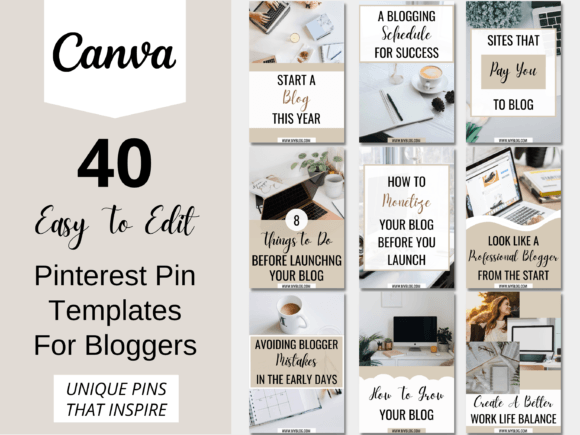
List & “How-To” Pin Templates
- Best for: “10 ideas”, “7 tips”, “step-by-step” content.
- Use when: you want scroll-stopping, text-led pins.
Product & Promo Pin Templates
- Best for: product features, bundles, offers, printable downloads.
- Use when: you need price/benefit callouts + clear CTA.
Idea Pin Covers
- Best for: multi-slide content and series formats.
- Use when: you want a consistent cover style across a theme.
Workflow: how to use Pinterest templates
This workflow keeps your pin production fast and consistent:
- Create a mini brand kit: 2 fonts, 3–5 colors, badge style.
- Choose 5–8 layouts: standard, list, how-to, product, idea pin cover.
- Write headline-first: 6–10 words, benefit-focused.
- Batch create variants: 3–5 pins per URL (change headline & image, keep layout).
- Export clean: PNG for crisp text; keep file size reasonable.
- Track what wins: save top-performing layouts and reuse them.
Recommended picks
Start with these “systems” (not random designs). They’re easy to customize and scale.
Title-First Blog Pins
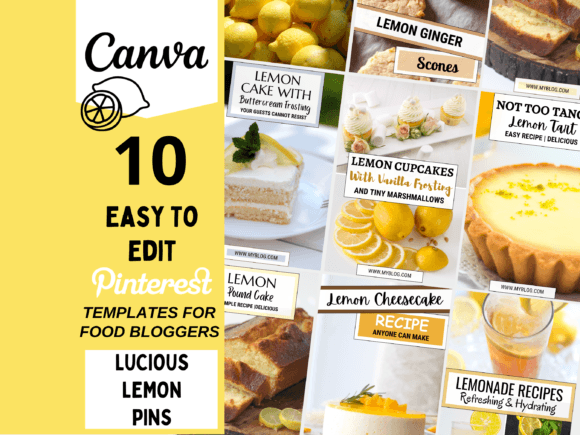
Big headline zone + image + small CTA. Perfect for tutorials and lists.
View options →List & Tip Pins
Readable, click-friendly layouts with strong contrast and numbered structure.
View options →Product / Promo Pins
Layouts with benefit callouts and offer focus – clean and easy to brand.
View options →Idea Pin Covers
Consistent cover systems for multi-slide content and series publishing.
View options →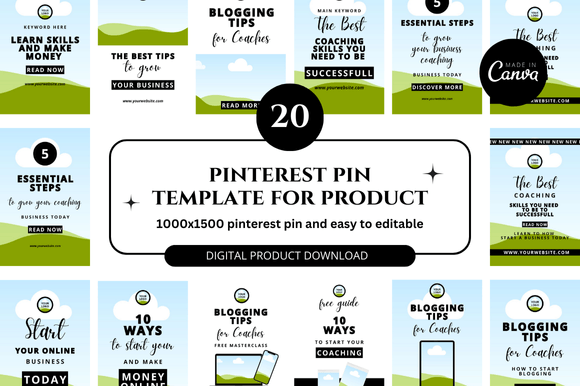
FAQ
What size should Pinterest pins be?
A common standard is 1000×1500 (2:3). Keep the title readable on mobile and avoid tiny details.
How many templates do I need?
Start with 5–8 reusable layouts. Rotate them and create 3–5 variants per URL to test headlines and visuals.
How do I keep pins on-brand?
Use the same font pair, color palette, badge style, and spacing rules. Replace headline text first, then images, then small accents.
Next step
Pick one pin style, build a tiny brand kit, then batch-create 10 designs. Once you have consistency, test variations and keep what gets the most clicks.